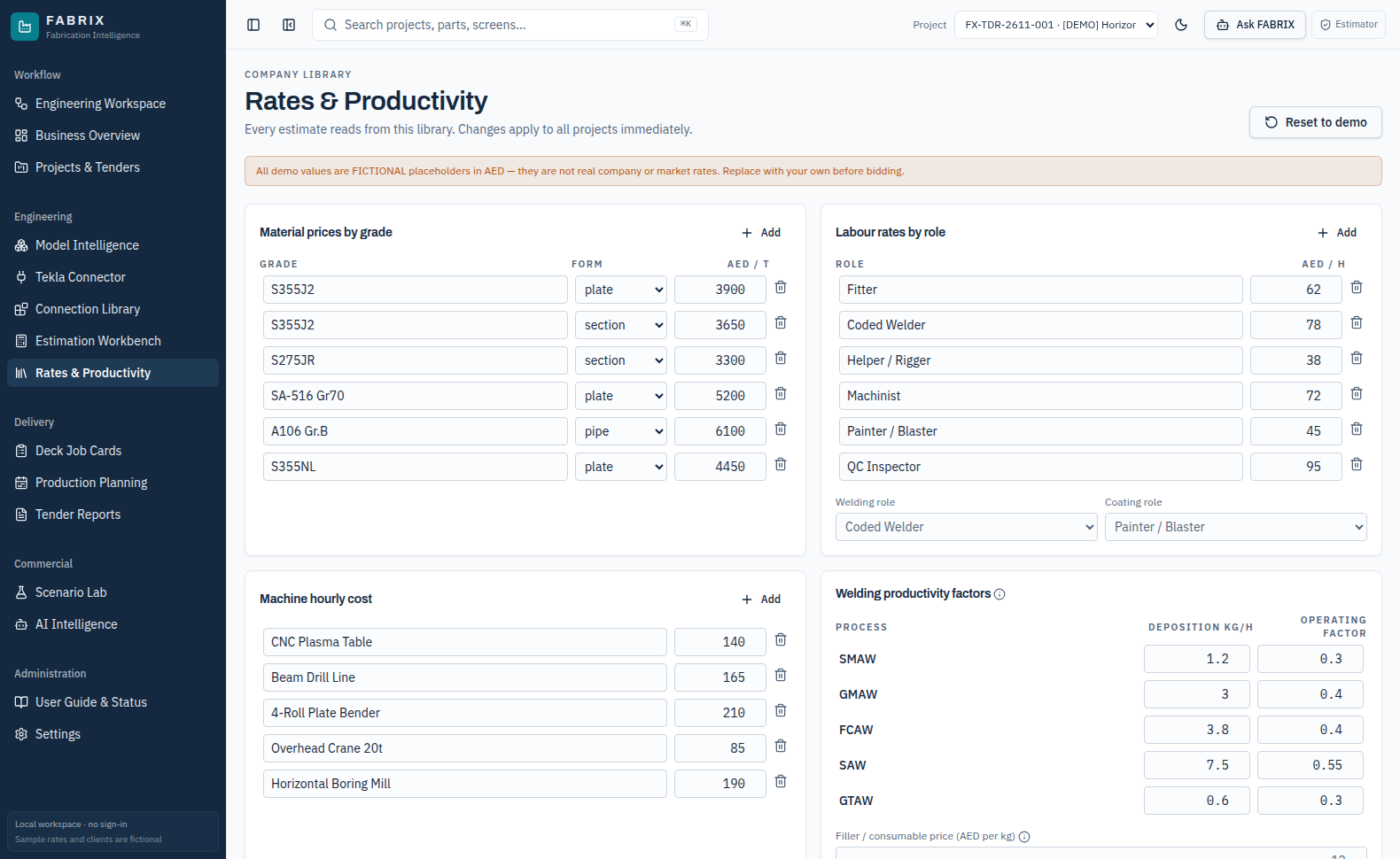
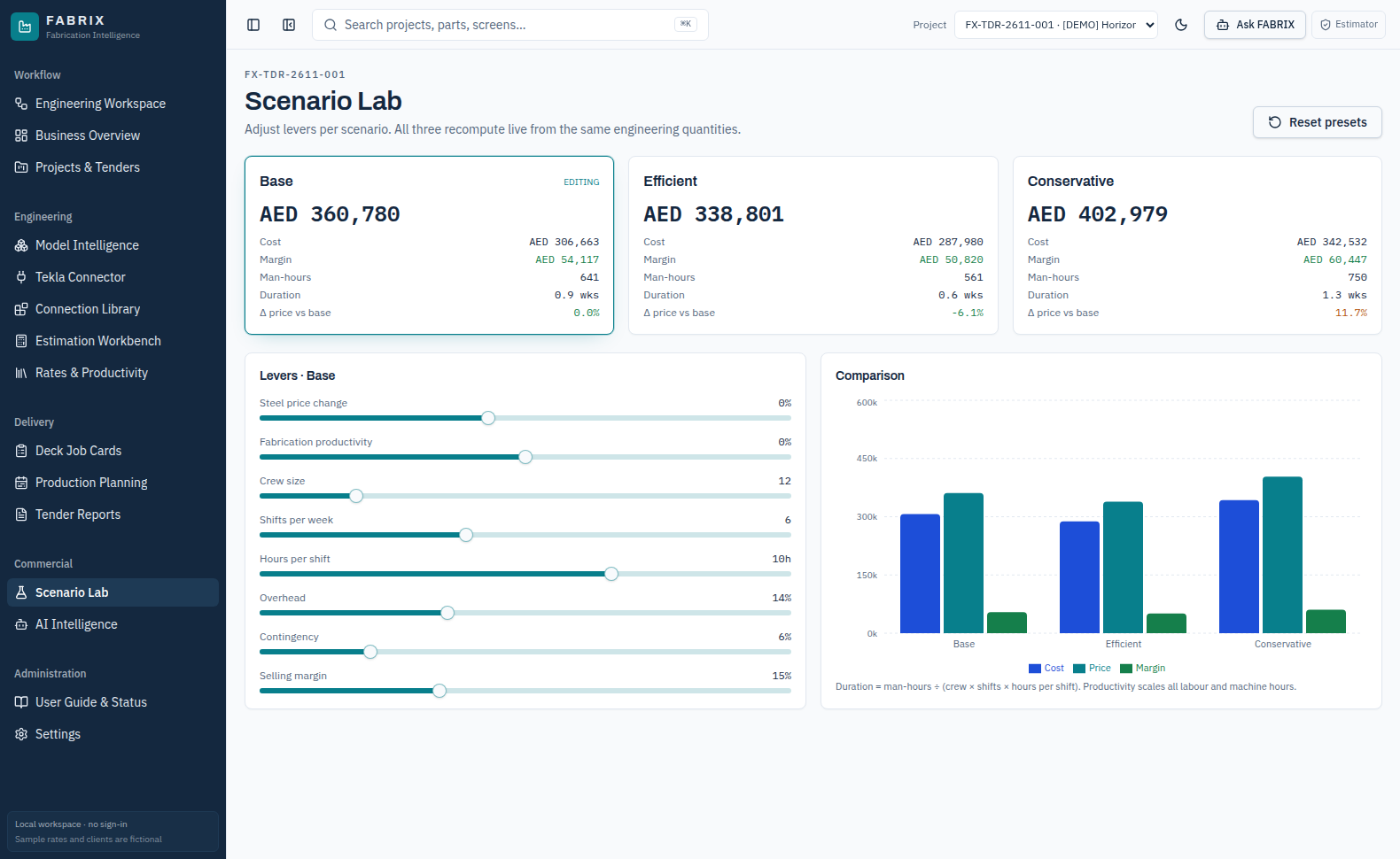
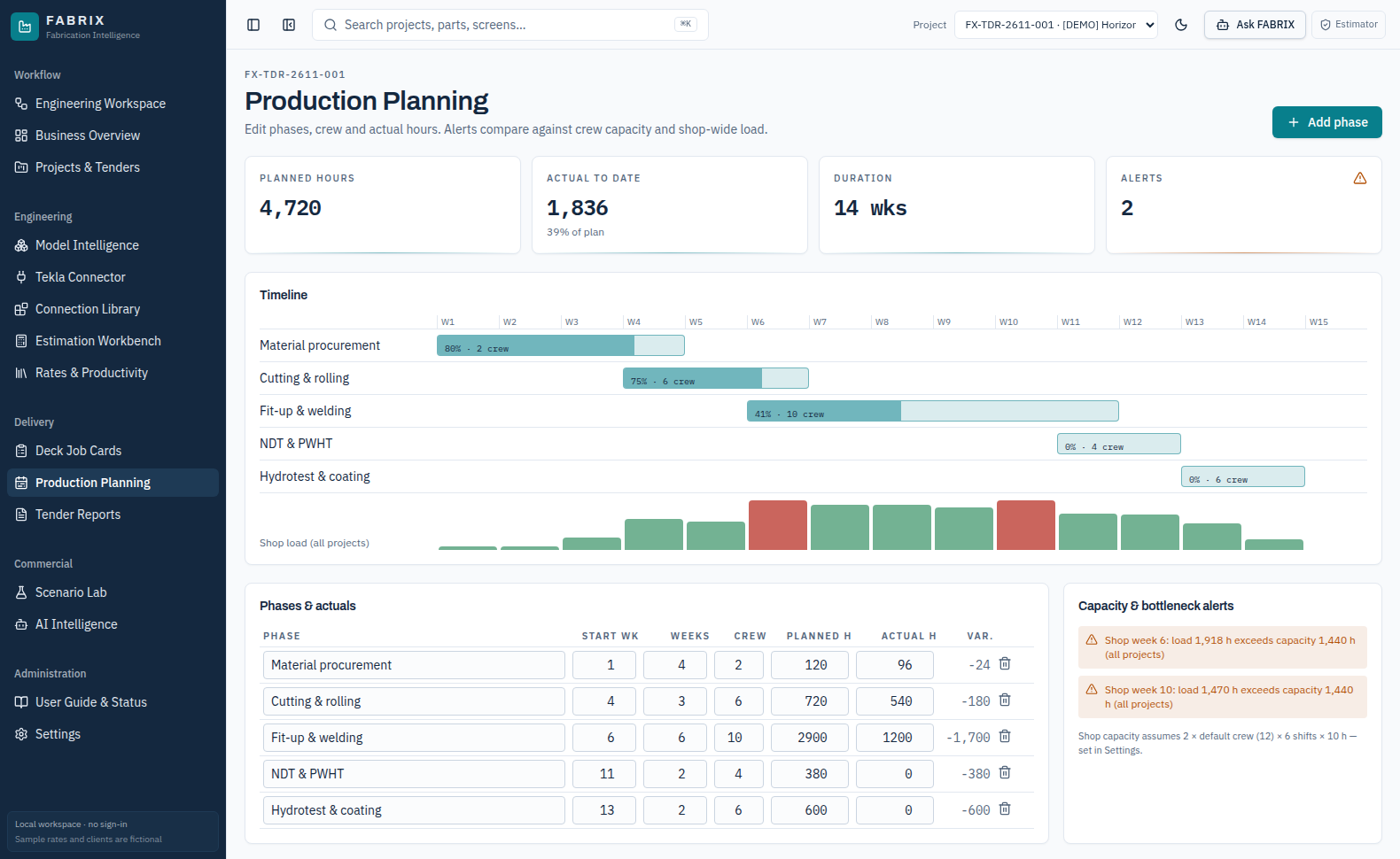
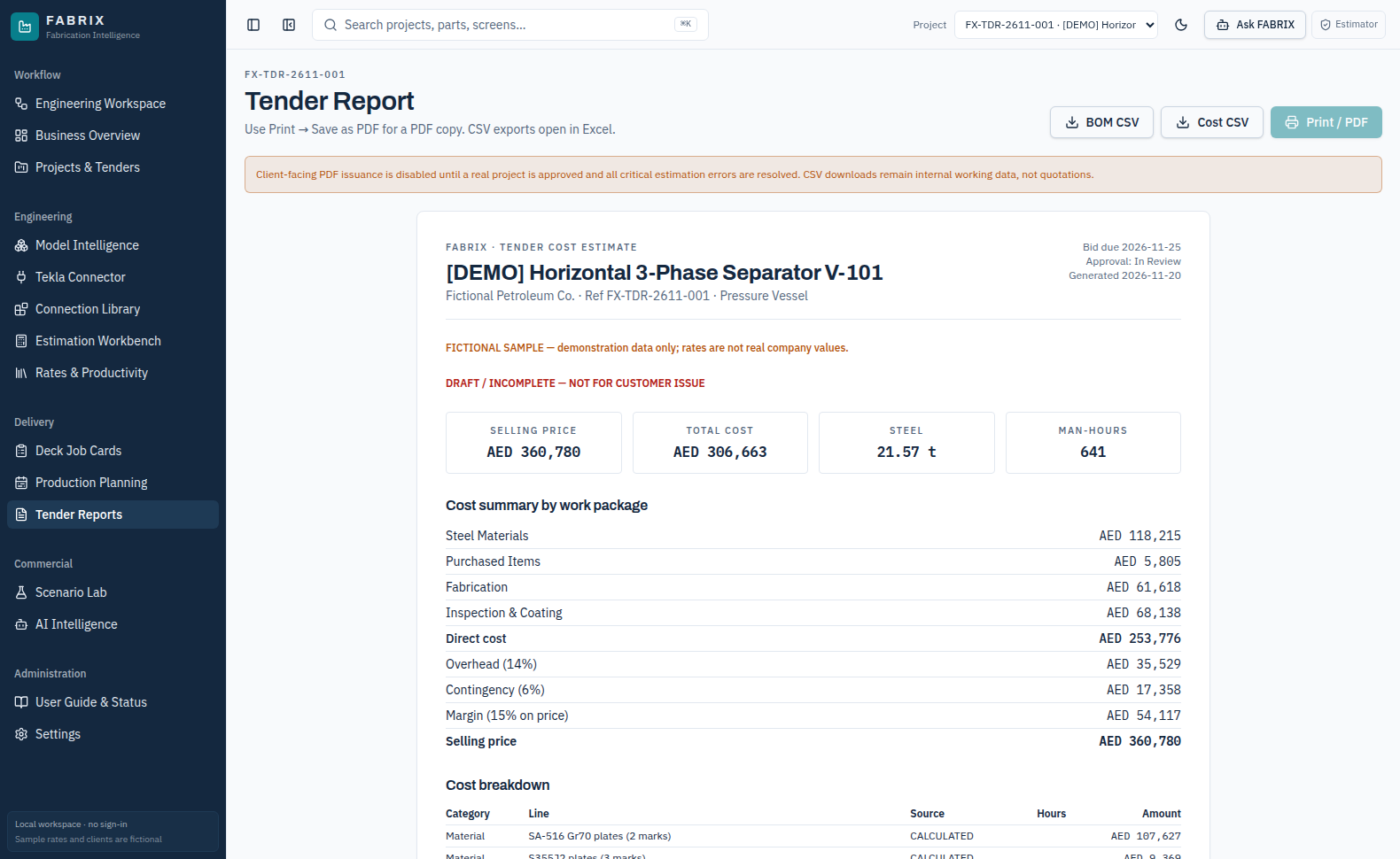
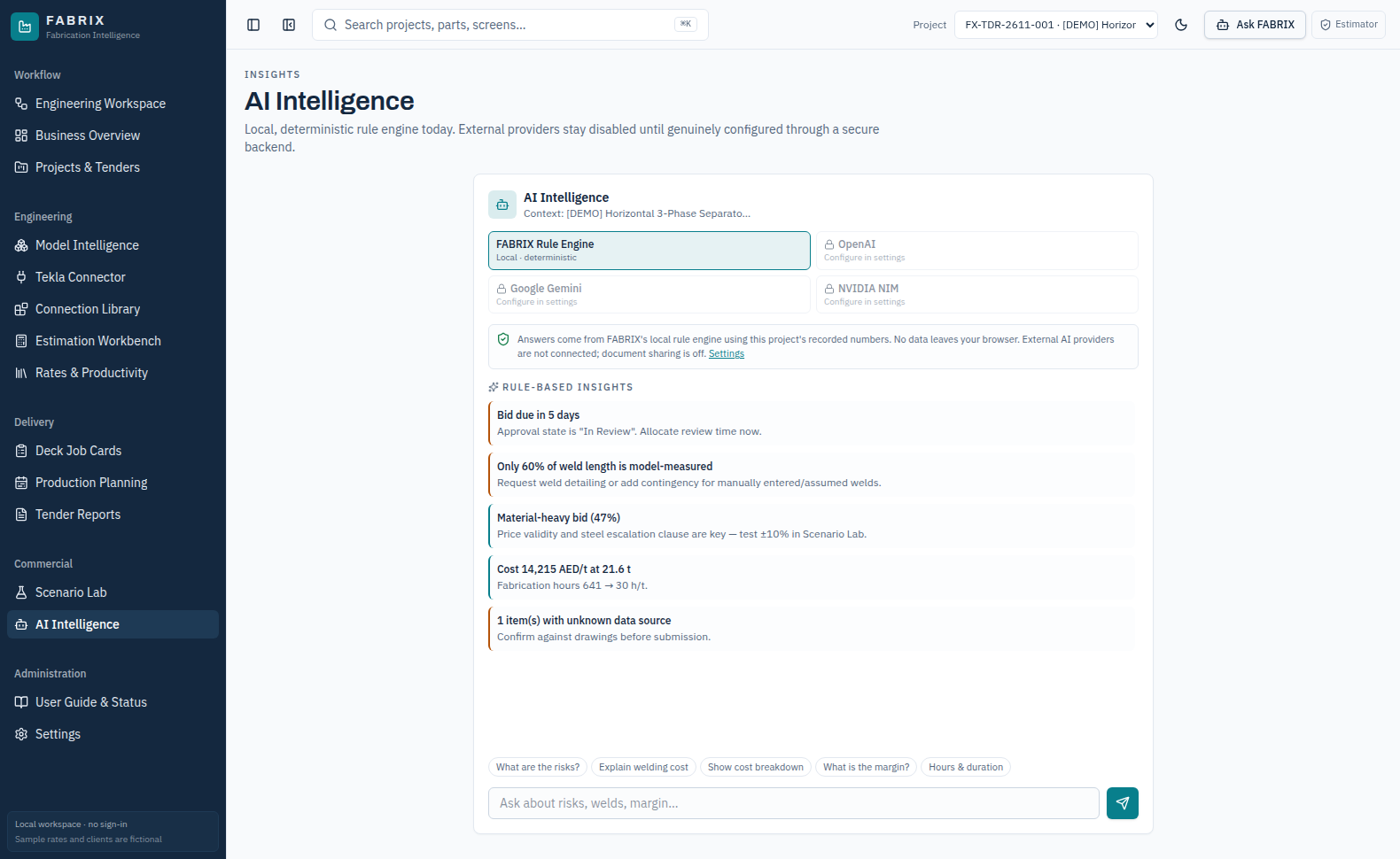
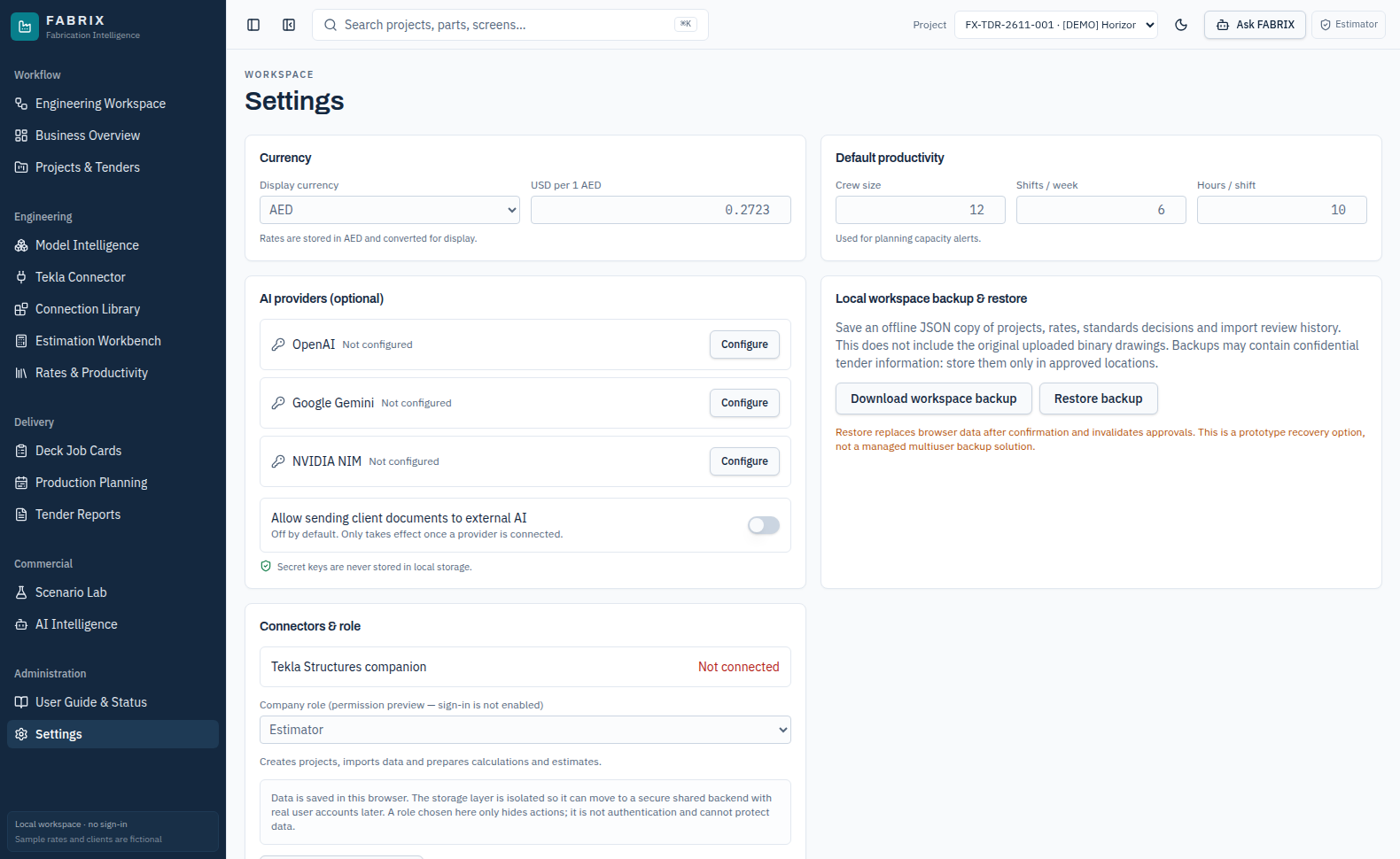
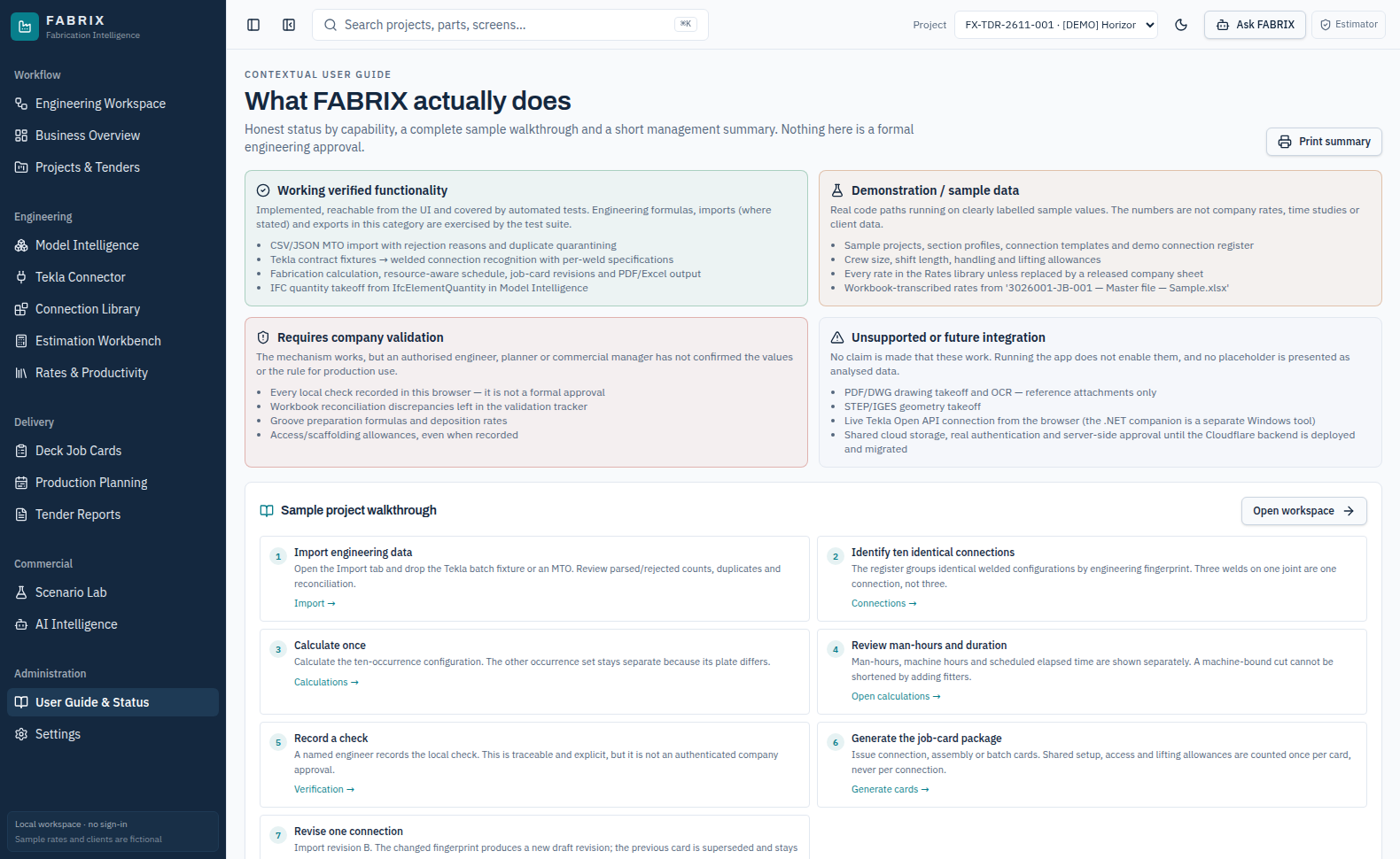
How to use every screen, where to obtain engineering inputs, what to upload, how calculations are produced, and which PDF / Excel files you receive.
15Application screens
03Distinct import pathways
02Worked job-card examples
29Actual staging screenshots
Live reference: fabtech-fabrix.eccentrics.live
FABRIX 2.0 · STAGING user guide · 20 November 2026 · Sample data is fictional01
01 / GUIDE TO THIS MANUAL
Start here
This guide is based on the deployed FABRIX 2.0 Cloudflare staging application, not a conceptual mock-up.
01
Choose the active tender
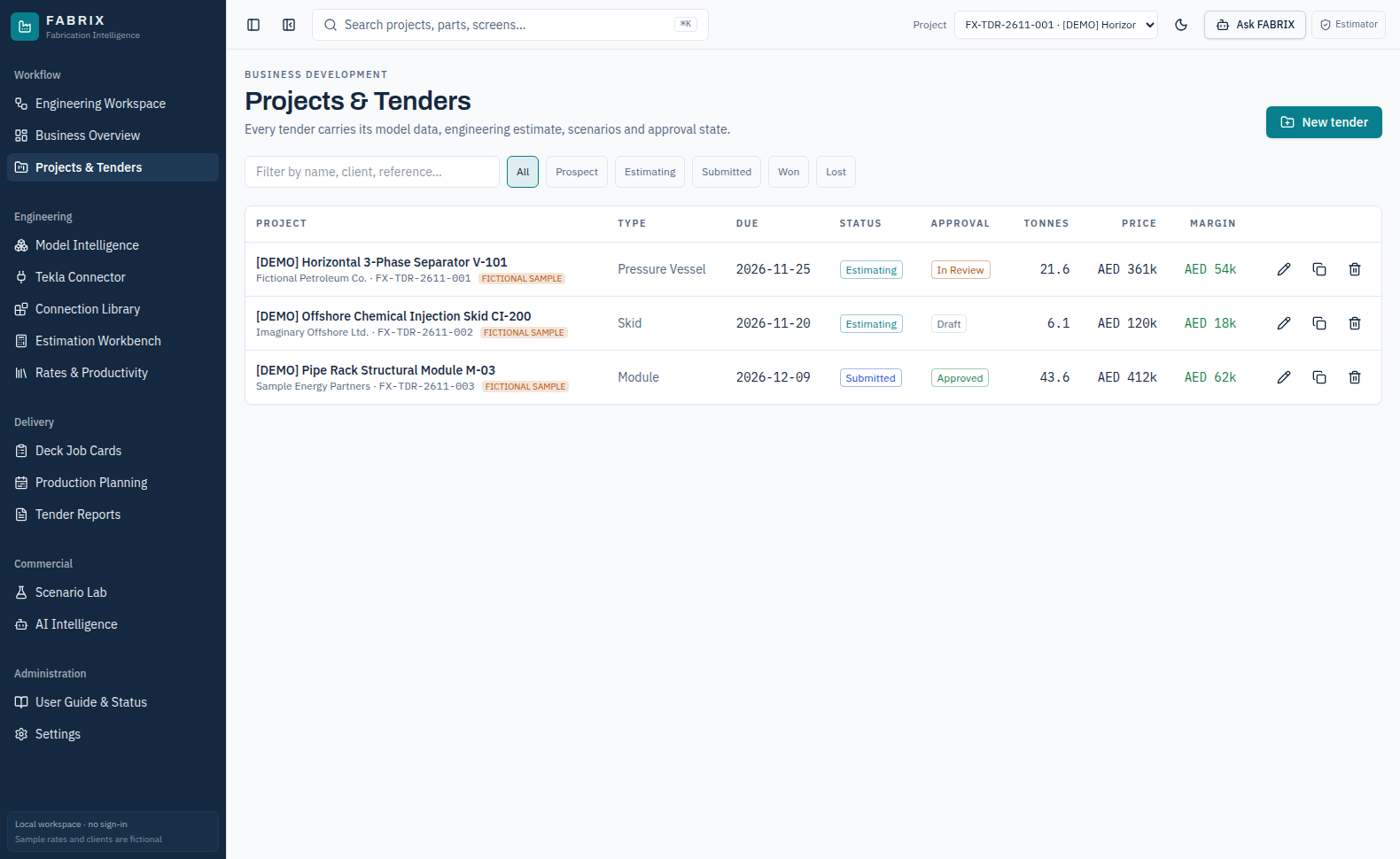
Projects & Tenders → select project in the header.
02
Choose your input path
IFC/MTO, Tekla connection JSON, or deck weld-master CSV.
03
Validate engineering
Resolve missing sizes, NDT, quantities, rates, and revisions.
04
Export controlled results
Download fabrication reports, connection cards, and Excel files.
Audience
Estimator: pricing and work packages. Engineer: geometry, welding and technical reconciliation. Checker: verify assumptions and release status. Planner: hours, crews and actuals. Manager: dashboard and reports.
Important status notice
The staging Worker has an authenticated D1 API, but the current React frontend still primarily stores projects in this browser's local storage. It does not yet provide working cross-device sync or a formal authenticated engineering approval screen.
Use the sample files in the accompanying ZIP first. The results are test examples, NOT actual company fabrication rates or an authorization to issue production documents.
FABRIX 2.0 · STAGING user guide · 20 November 2026 · Sample data is fictional02
02 / CORE WORKFLOW
The three engineering routes
Select the route matching the source documents available to your engineering or fabrication team.
A
Model and MTO
IFC or tabular material list → Model Intelligence → parts, weight, geometry and project estimate.
Not interchangeable: An IFC is NOT a deck weld-master CSV. A Tekla companion export is NOT the native Tekla model database. Uploading one input type does not automatically complete every other engineering module.
Complete only the route whose required inputs have been checked. Missing records should remain excluded or blocked instead of silently guessed.
FABRIX 2.0 · STAGING user guide · 20 November 2026 · Sample data is fictional03
03 / PREPARE THE INPUTS
Where do the files come from?
The screen and the responsible source matter as much as the filename.
Sample input files with these exact names and formats are included in the ZIP. Do not rename .xlsx to .csv: export a real comma-separated file from Excel.
FABRIX 2.0 · STAGING user guide · 20 November 2026 · Sample data is fictional04
04 / SOURCE FILE CHECKLIST
Before uploading
Check the input files against this checklist to prevent incorrect calculations.
IFC / engineering model
Confirm project, model revision, units (mm/m), member GUIDs, part marks, grades, section designations and IFC quantities. Ensure the IFC uses supported object properties.
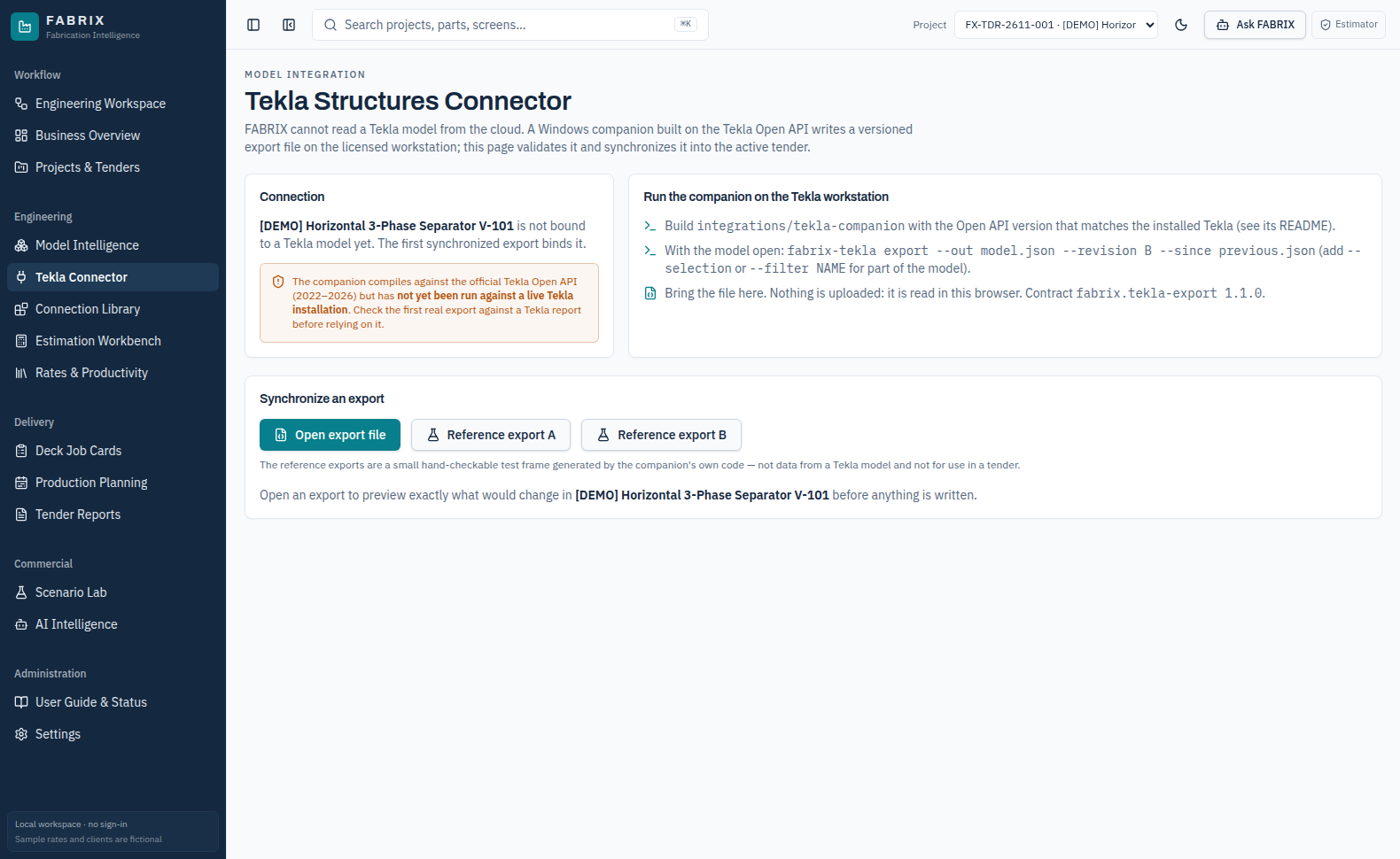
Tekla route: The license-backed Windows companion must export a normalized JSON file using contract fabrix.tekla-export. A native Tekla model file cannot be opened directly on the cloud website.
Weld and fabrication records
Confirm weld size, type, length, process, preparation, NDT requirement, joint count and IDs. For deck cards confirm the Master table headers and Part list columns shown in the sample.
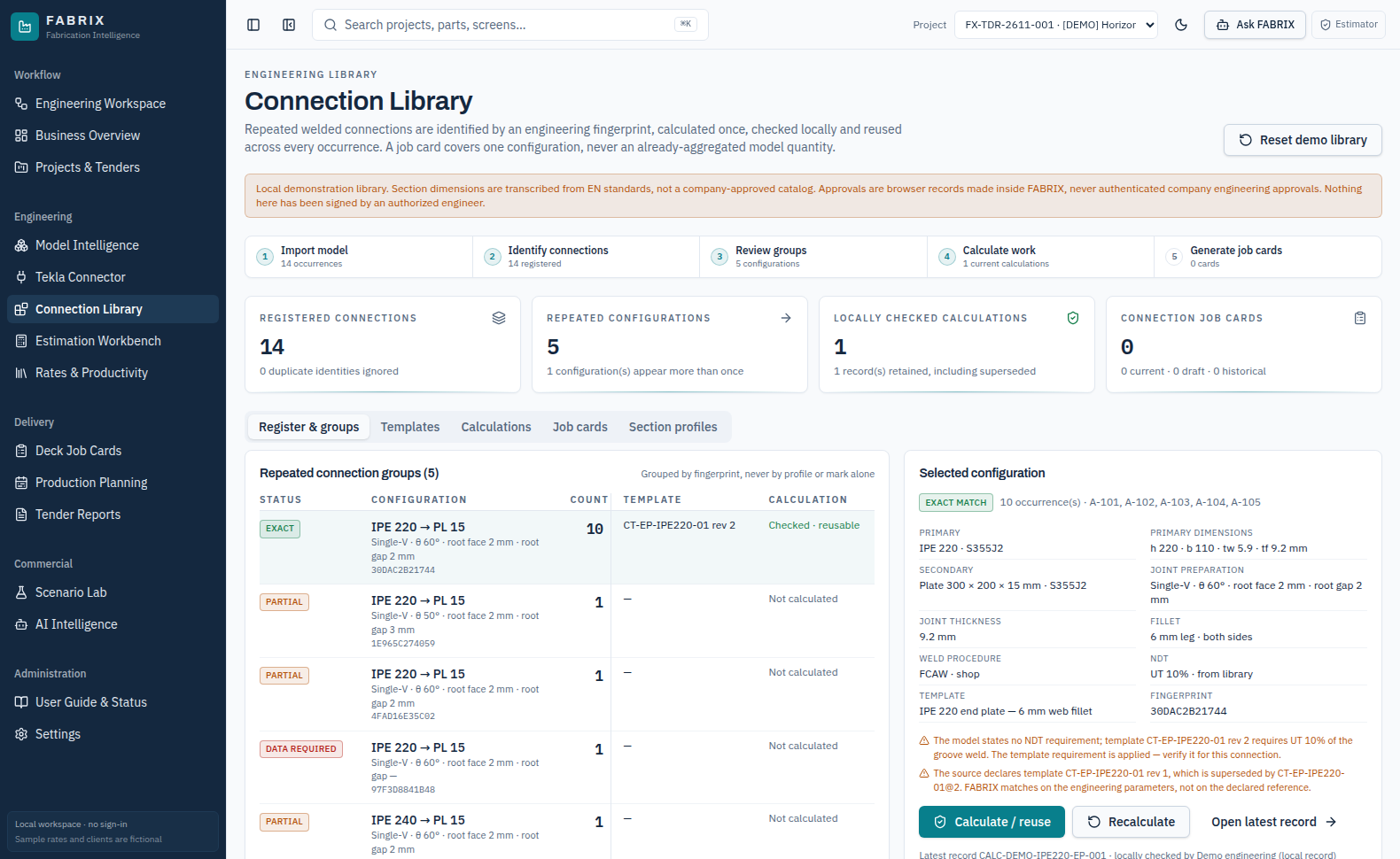
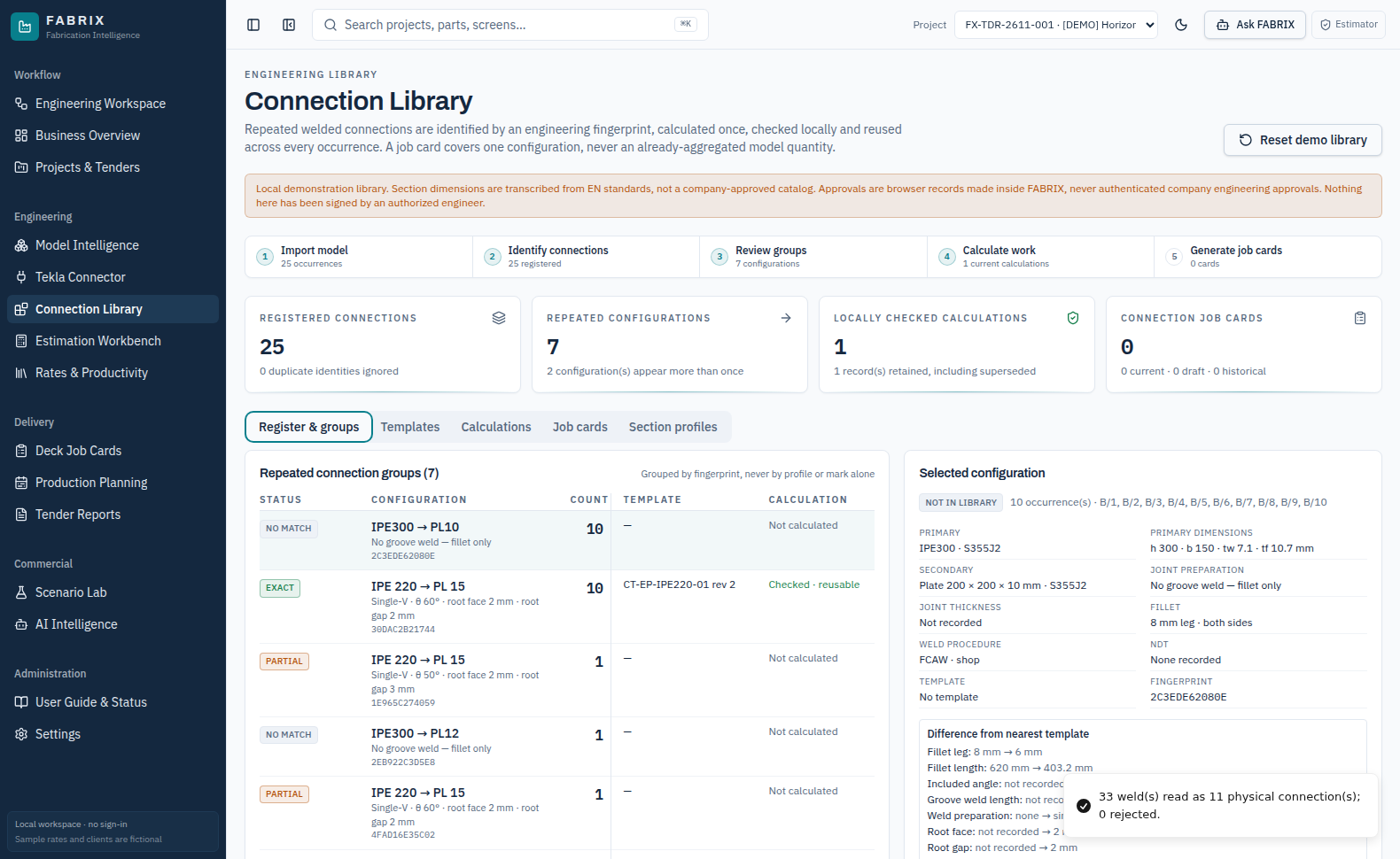
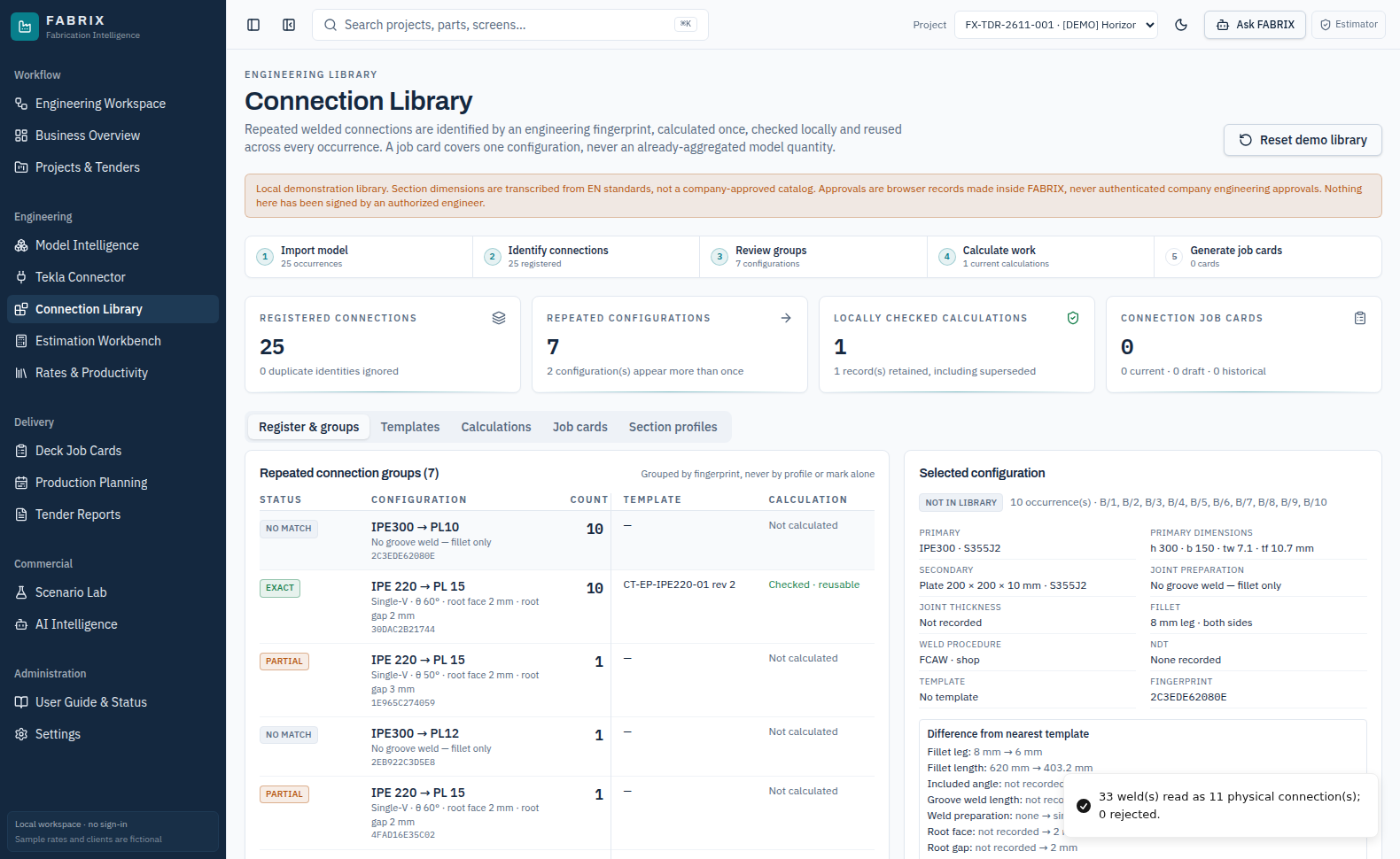
Do not treat a connection as identical because only its two beam profiles match; the engineering fingerprint also matters.
Cost, labour and procurement
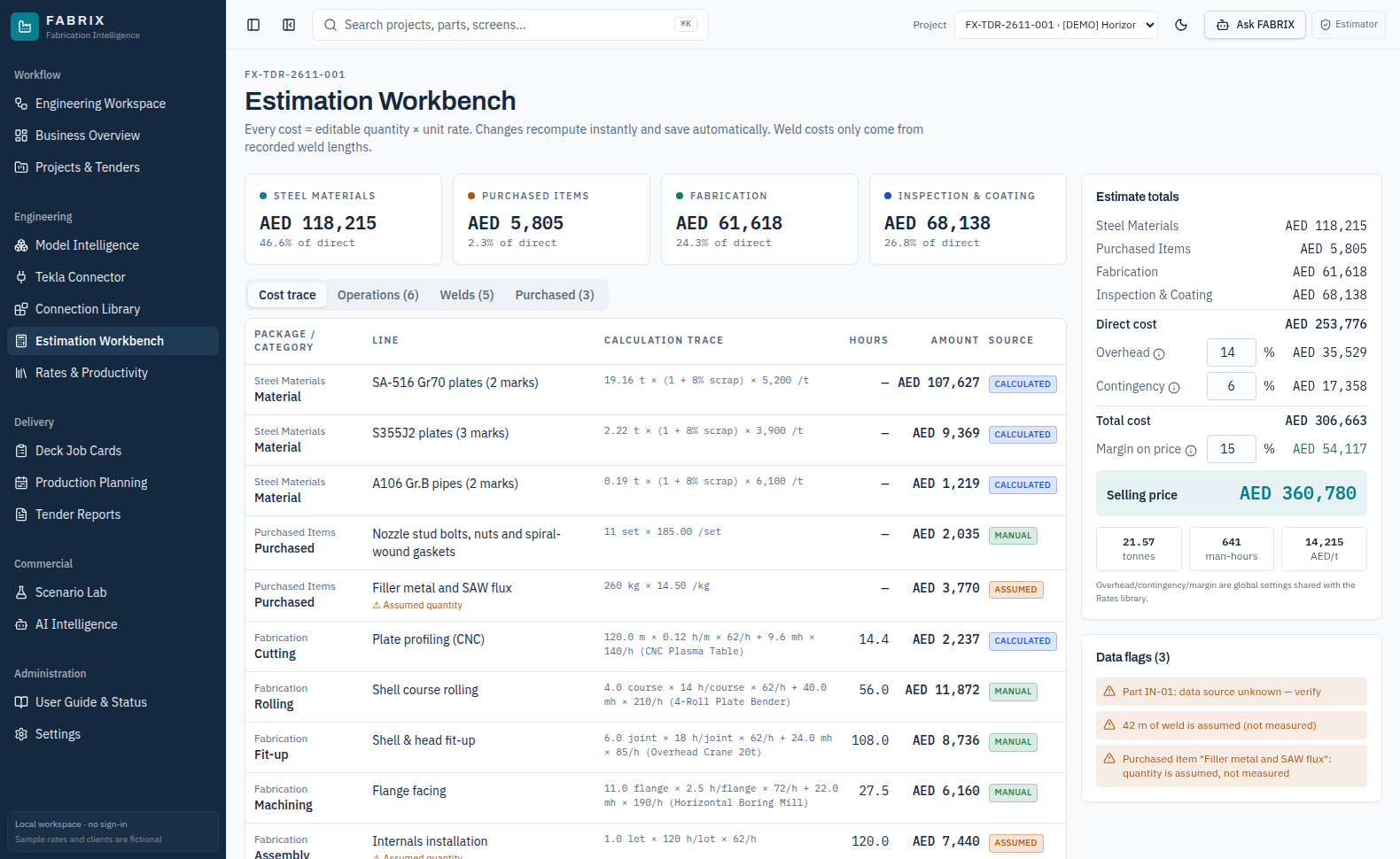
Obtain dated approved material, wage, machine, consumable, NDT, coating, access and overhead rates. Record supporting evidence and validity. Test values provided in FABRIX are fictional.
Approval and custody
Keep original engineering files and full ZIP backups. Use named internal verification, revision tracking and an independent company checker before any operational release. A local check in this version is not authenticated approval.
Never upload a confidential tender to the public staging URL unless your company has authorized this environment and access-control review. These training files are synthetic/reference fixtures only.
FABRIX 2.0 · STAGING user guide · 20 November 2026 · Sample data is fictional05
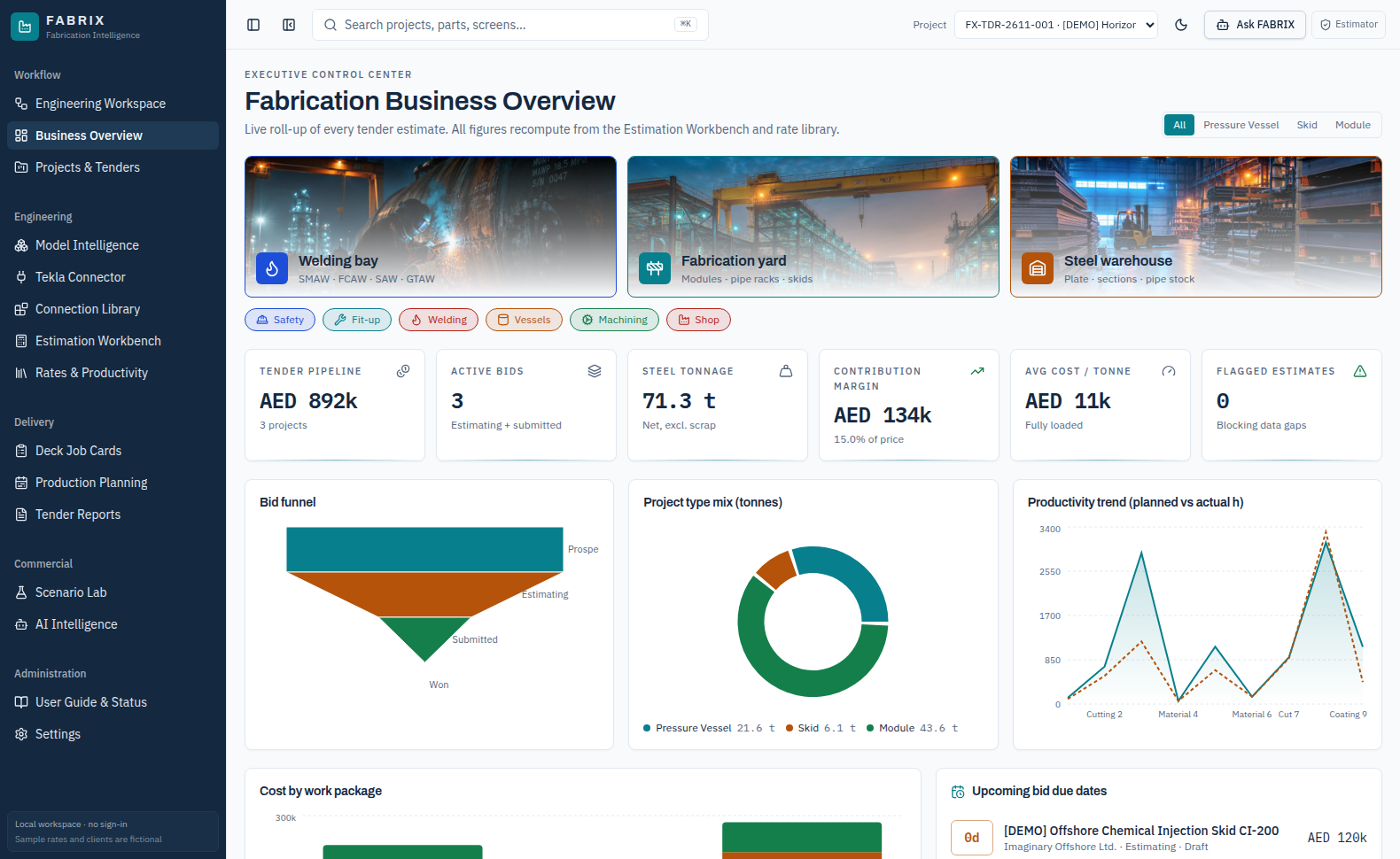
01 / EXECUTIVE
Business Overview
Project KPIs and tender portfolio at a glance.
STEPS TO FOLLOW
Open Business Overview from the Workflow menu.
Filter All, Pressure Vessel, Skid or Module.
Read AED pipeline, bid deadlines, cost per tonne and flags.
Click Projects & Tenders or the workspace to investigate a figure.
Result: Filtered portfolio and next action for each tender.
Check: Demonstration clients and values are fictional.
Never use these reference fixture inputs for commercial tender issue. They contain synthetic or reference values and do not verify Tekla compatibility with your company's real model.
FABRIX 2.0 · STAGING user guide · 20 November 2026 · Sample data is fictional21
06 / LIVE SAMPLE A
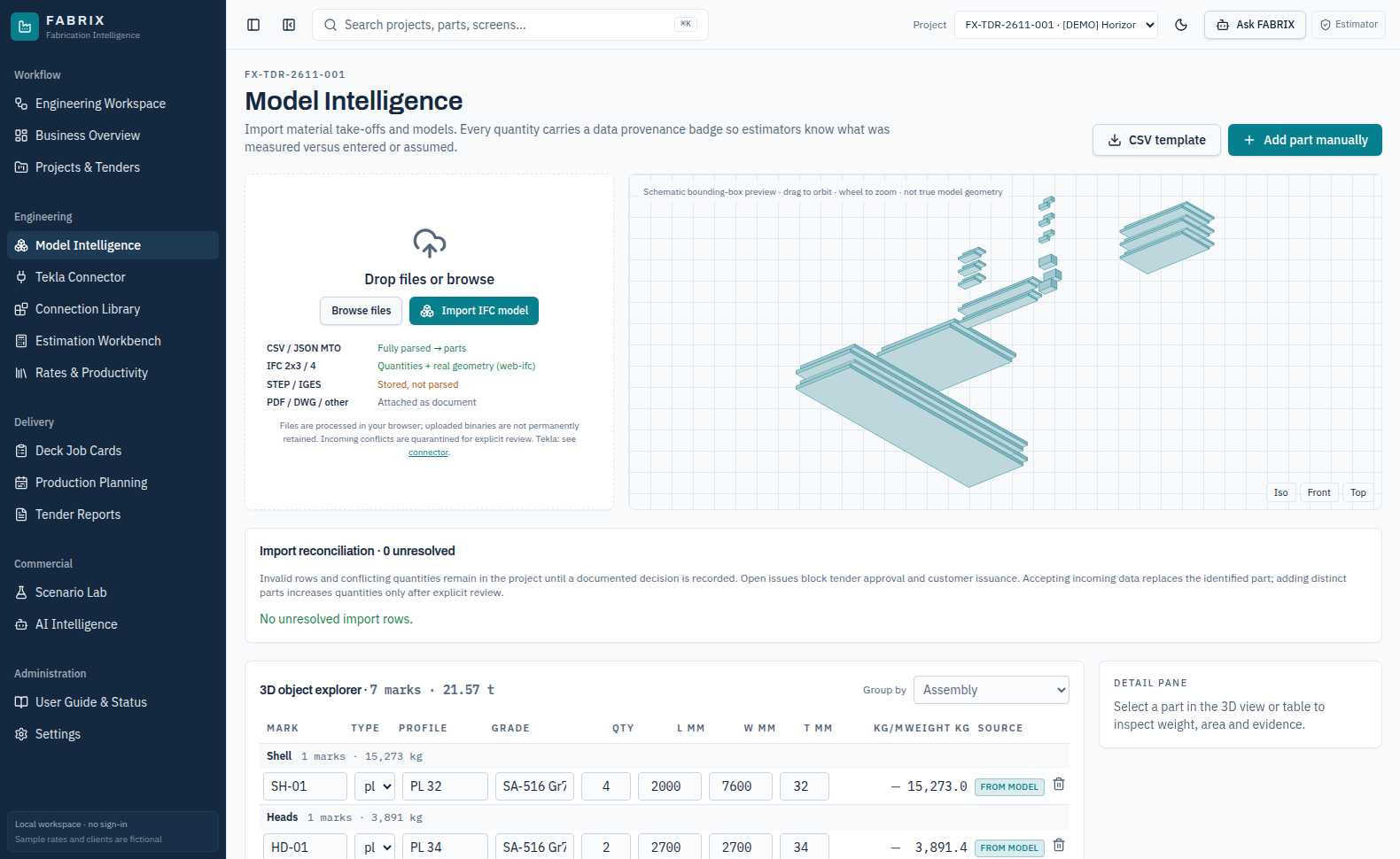
IFC4 model → 3D viewer
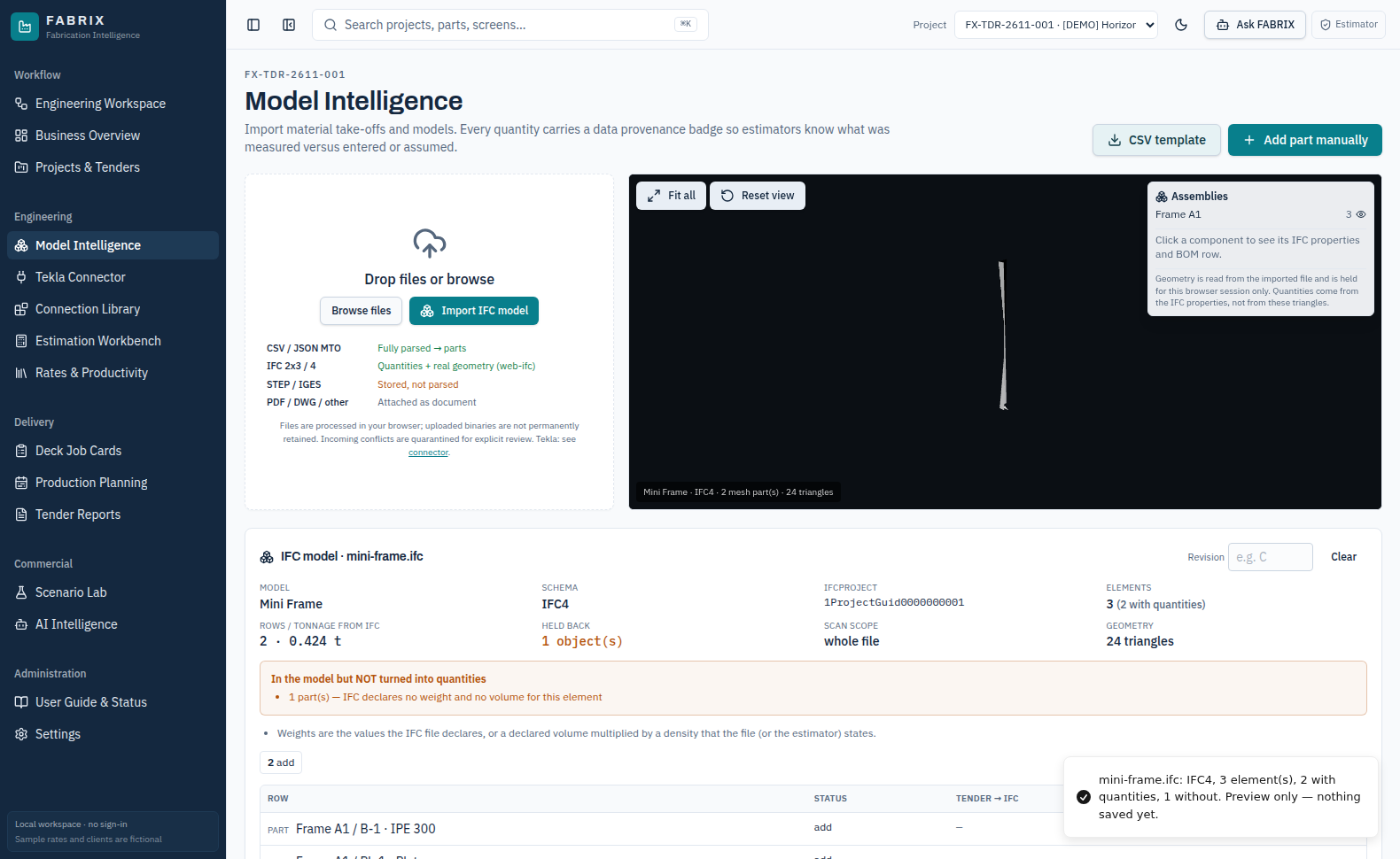
Input: 03-IFC4-Mini-Frame.ifc. This is a small model intended to show the geometry and quantity import controls, not a completed fabrication package.
STEPS TO FOLLOW
Open Model Intelligence with the intended active project.
Click Import IFC model and select 03-IFC4-Mini-Frame.ifc from the ZIP.
Observe the 3D component viewer (2 mesh parts shown in the screenshot).
Review IFC-reported quantities and apply only after reconciliation.
Result: The sample IFC contains 3 elements, of which 2 supplied usable quantity rows in the verified import test.
Check: 3D triangles do not automatically mean full weld geometry or NDT coverage.
FABRIX 2.0 · STAGING user guide · 20 November 2026 · Sample data is fictional29
14 / VERIFIED DEMONSTRATION RESULT
Example calculation and exported files
These figures were taken from the actual job-card state and downloadable files generated on 20 November 2026.
16.04 hFabrication labour
9.00 hAdditive access
25.04 hTotal labour including access
4.14 hMachine hours (separate)
Measured/test figure
Value
Meaning
Number of included repeated joints
10
One engineering fingerprint selected
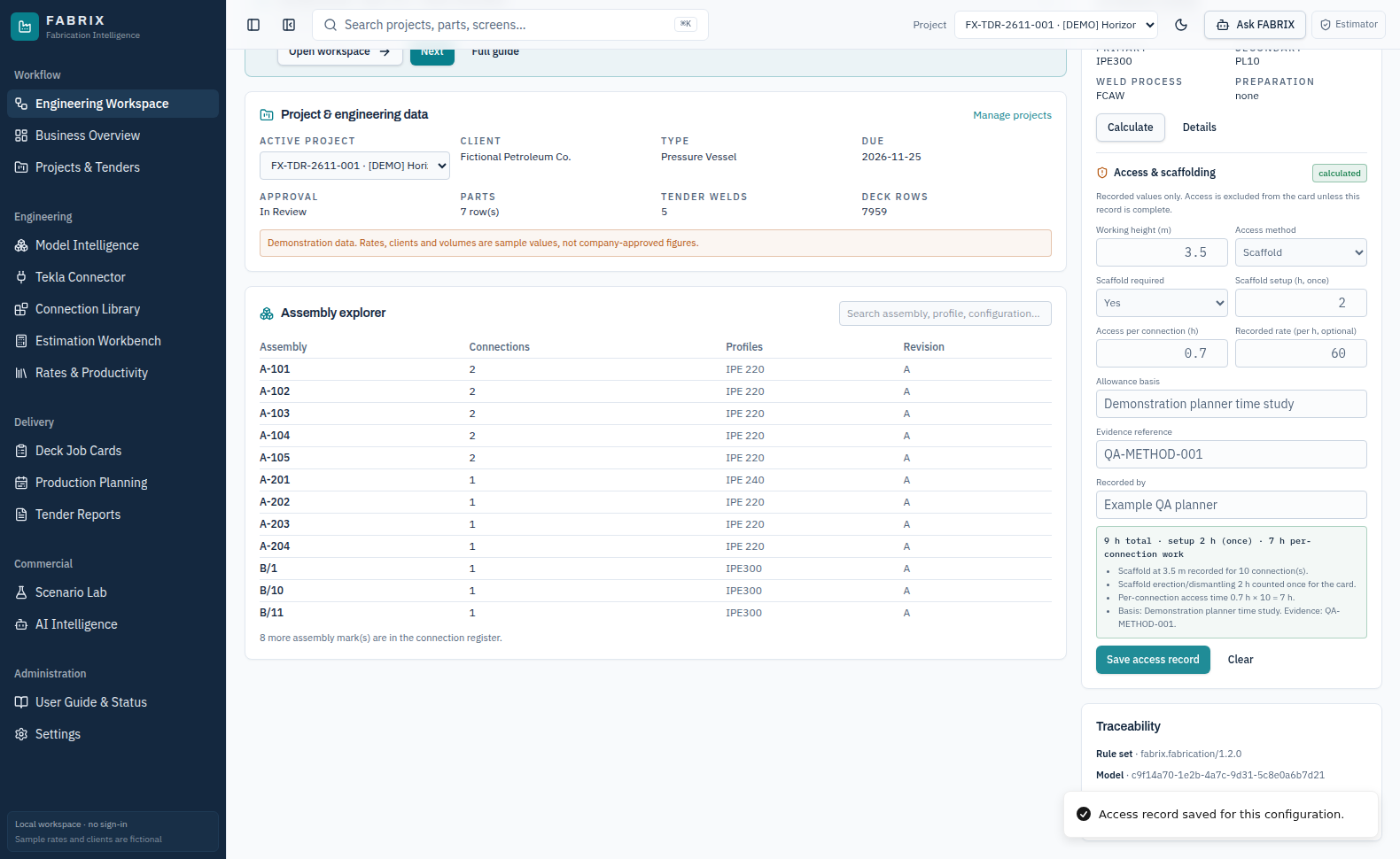
Scaffolding setup hours
2.00 h
Once per job card, not ten times
Access hours
7.00 h
0.7 hours × 10 physical joints
Additional access cost
AED 540
9 hours × demonstration AED 60/hour
Fabrication baseline cost
AED 991
Excludes separately recorded access
Adjusted card cost
AED 1,531
Baseline AED 991 + recorded AED 540
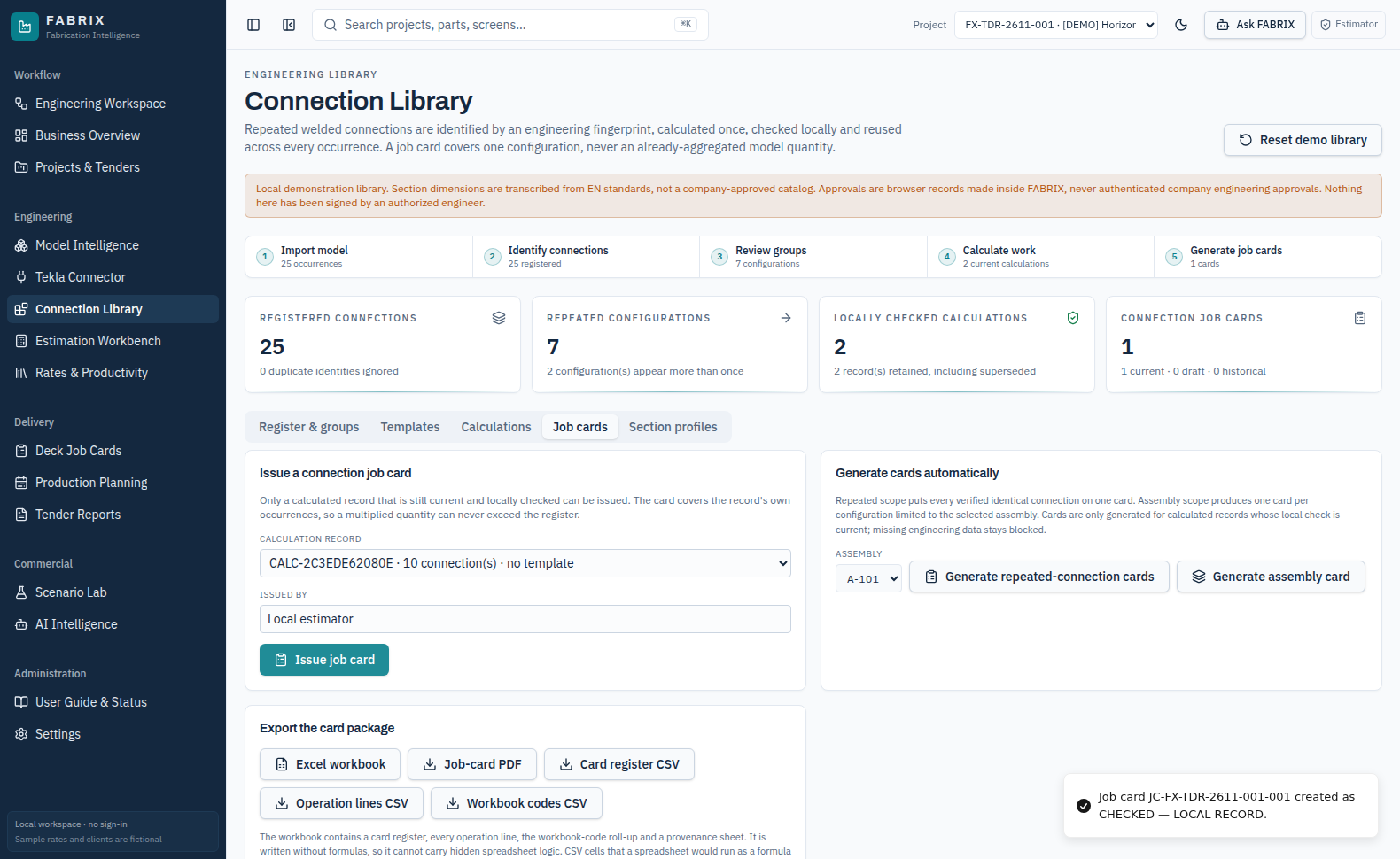
Connection card issue state
checked (local)
Not an authenticated company approval
The ZIP includes the real exported PDF, Excel workbook, CSV register and a JSON record of the sample calculation. None of these are customer-issue approved.
FABRIX 2.0 · STAGING user guide · 20 November 2026 · Sample data is fictional30
15 / OUTPUTS
Exactly what you download
The sample bundle includes files produced by the live staging build. All example filenames are deliberately descriptive.
Connection Library outputs
Example-Connection-Job-Card.pdf - A4 card showing the connection, revision, work, recorded access and exclusions.
Example-Connection-Register.xlsx - 5-sheet workbook including card register, operations and access.
Example-Connection-Register.csv - CSV register including additive access fields.
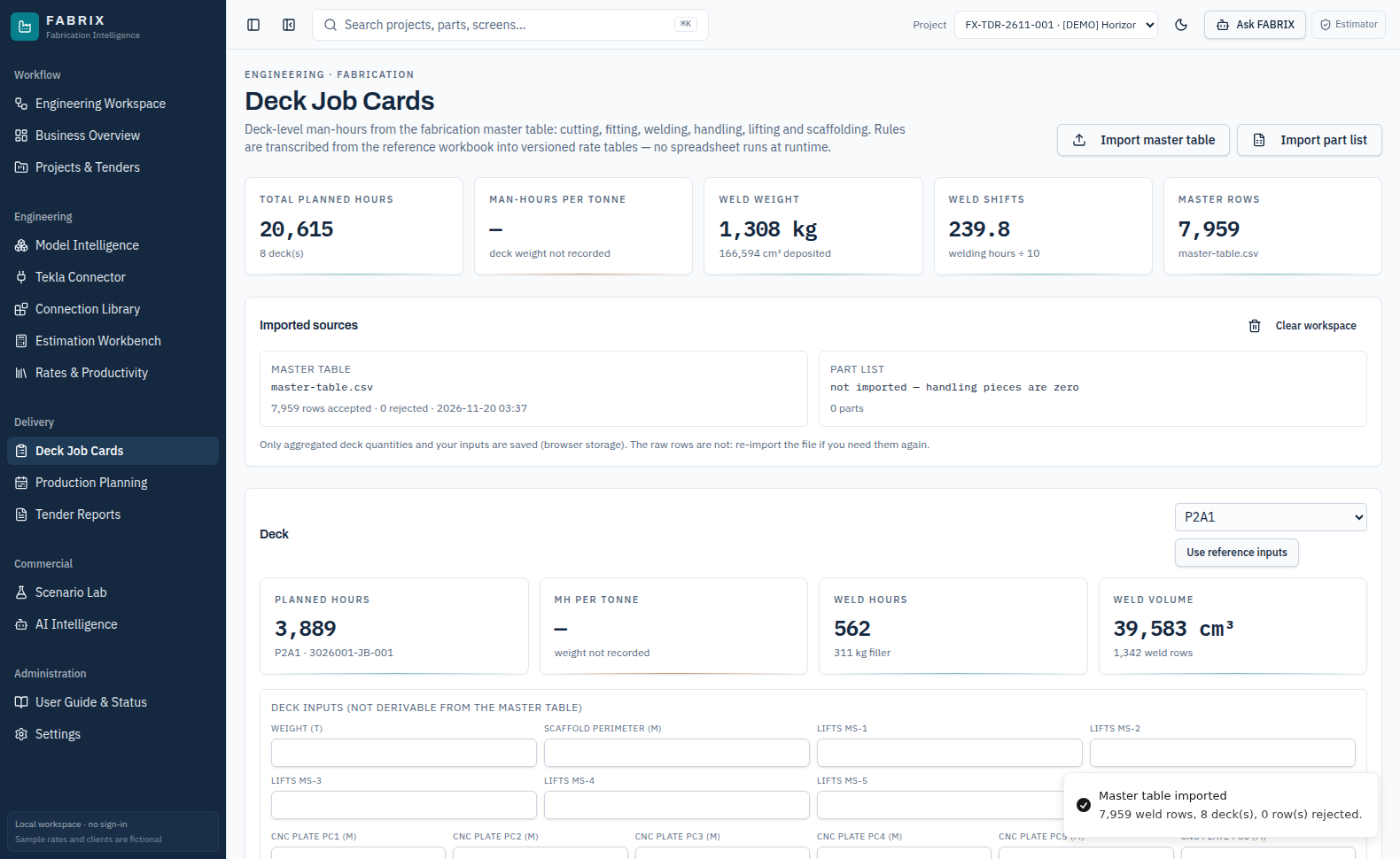
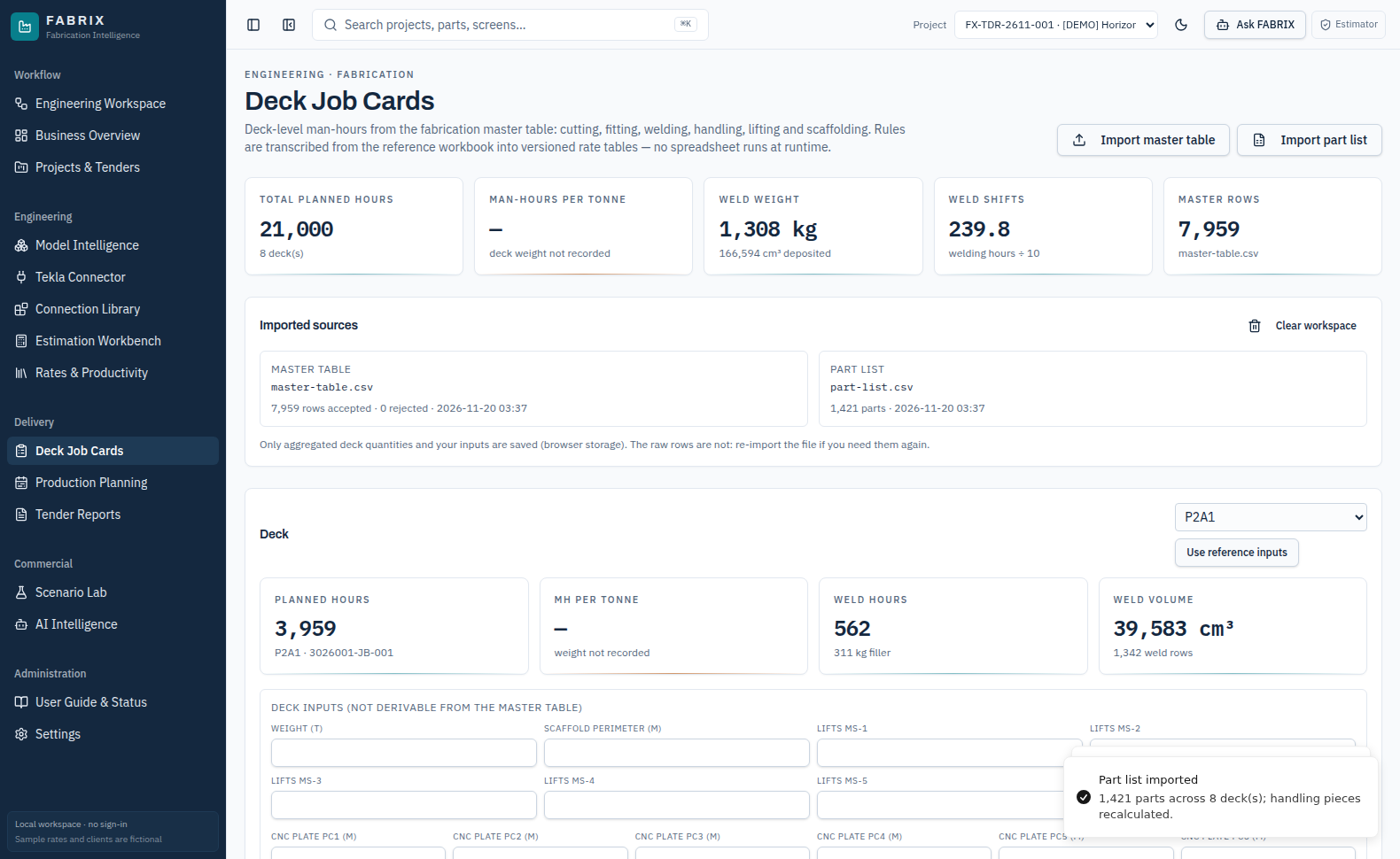
Deck Job Cards outputs
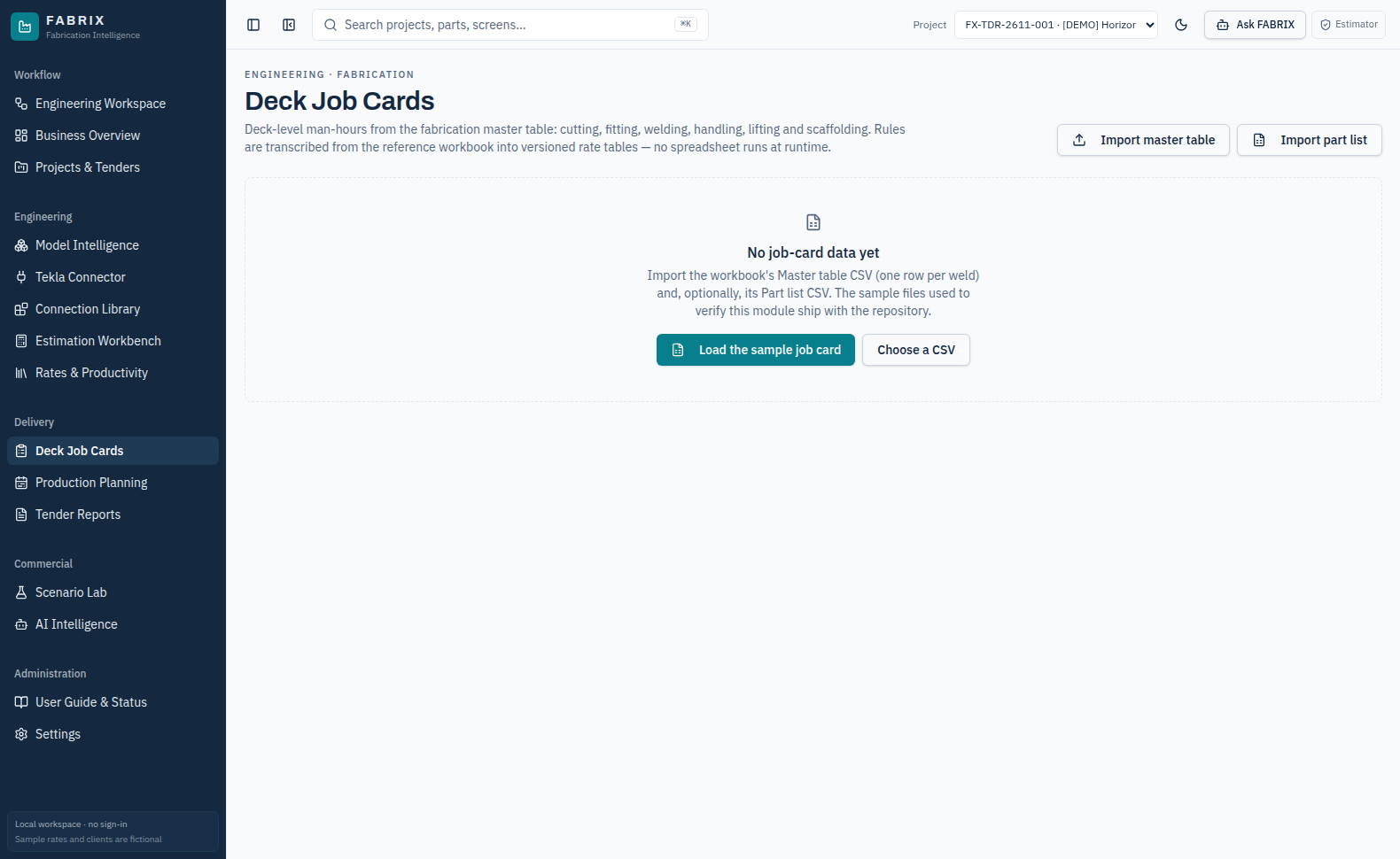
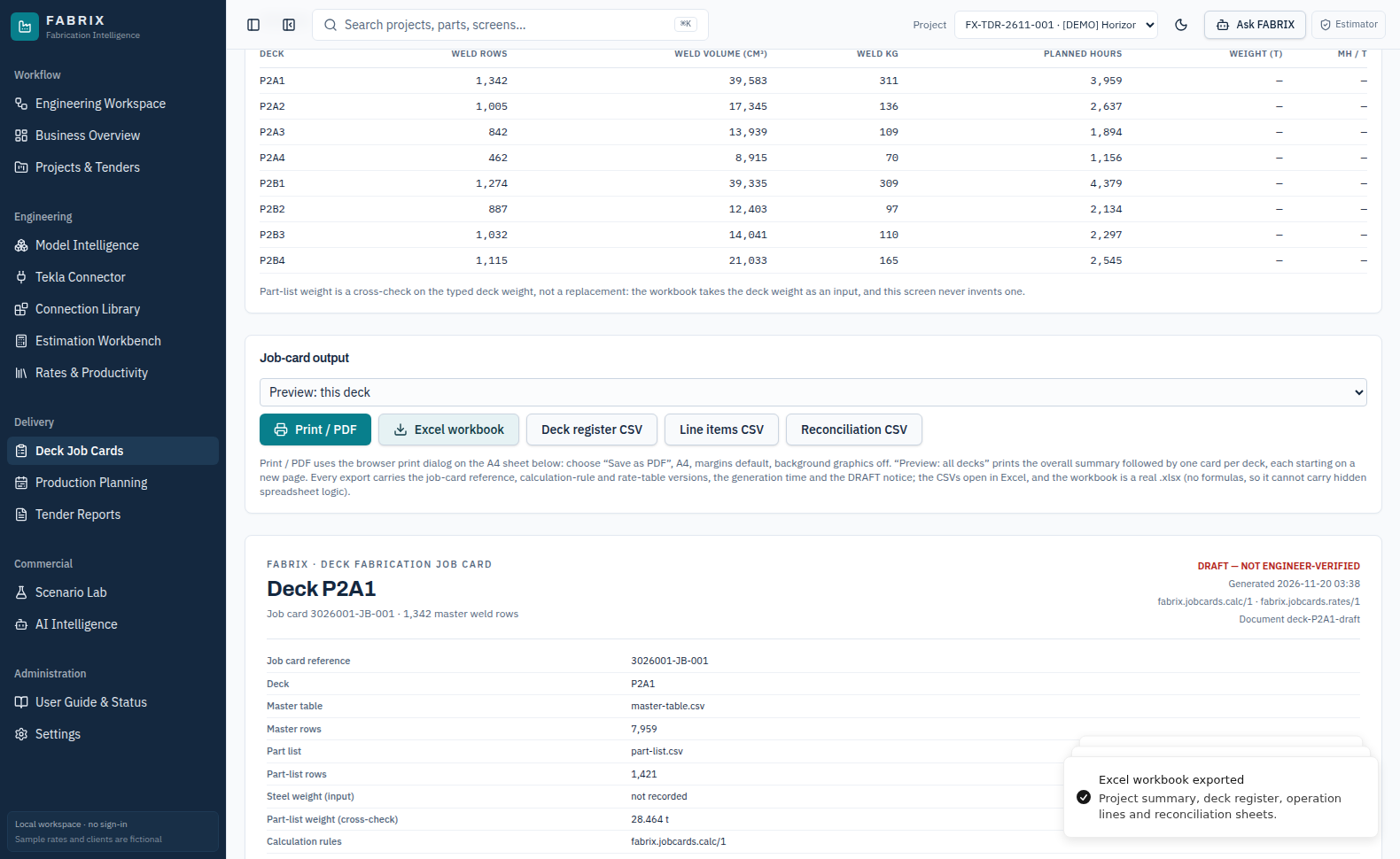
Example-Deck-JobCards.xlsx - deck/operation summaries and reconciliation produced after importing Master table and Part list.
Example-Deck-JobCard-Print.pdf - browser printed A4 job-card view from the same working data.
EXAMPLE-RESULTS.json - inspectable numeric result from the connection sample.
Do not confuse the two export pathways. Connection cards come from the Connection Library. Deck fabrication job cards come from Deck Job Cards. Tender BOM/Cost CSV comes from Tender Reports.
FABRIX 2.0 · STAGING user guide · 20 November 2026 · Sample data is fictional31
16 / MOBILE
Responsive views on phone
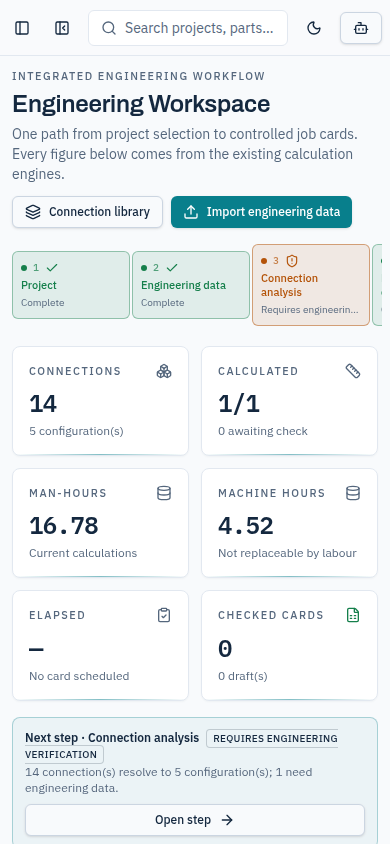
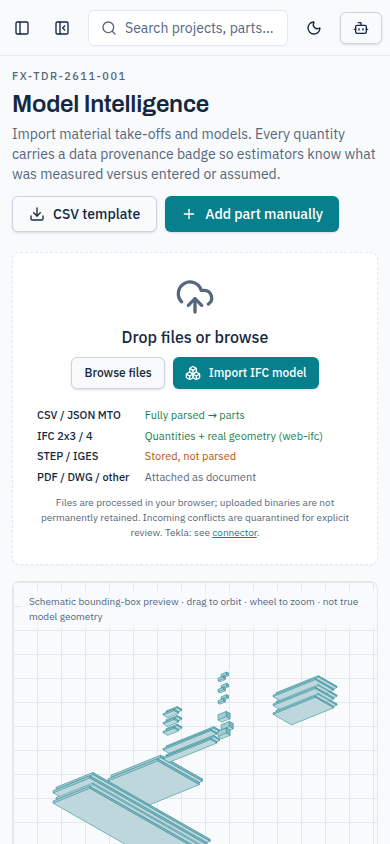
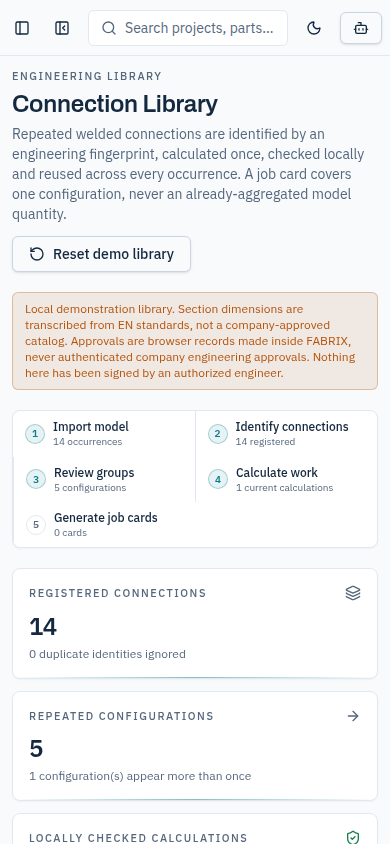
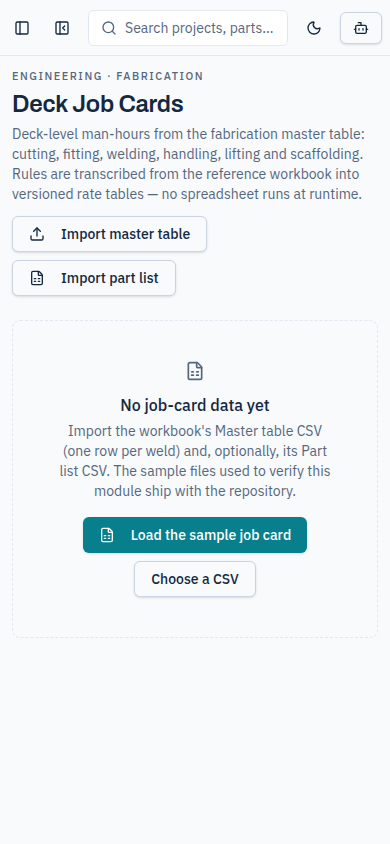
The same staging website adapts for phone and tablet. Screens below were captured at 390 × 844 pixels.
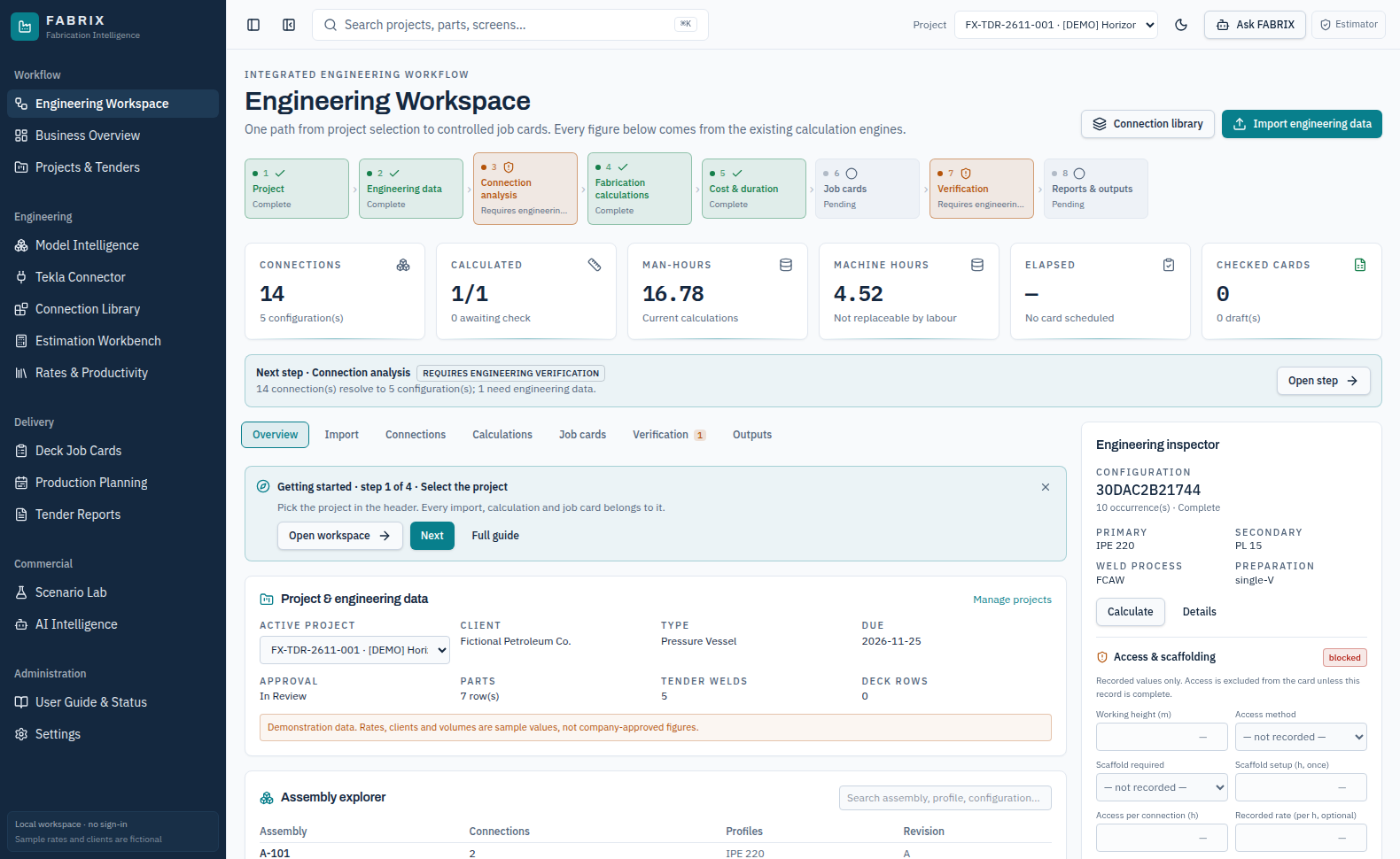
Engineering Workspace
Model Intelligence
Connection Library
Deck Job Cards
Use mobile for checking summaries and small edits. Large IFC models, wide engineering tables, mass imports and controlled PDF review are better on a workstation. Data is not yet auto-synced between browsers.
FABRIX 2.0 · STAGING user guide · 20 November 2026 · Sample data is fictional32
17 / TROUBLESHOOTING
Common errors and what they mean
Use these checks before assuming a module is broken.
Symptom
Action
IFC geometry appears but quantities are incomplete
Check the IFC export properties/quantity sets; meshes alone do not provide validated BOM quantities.
Tekla JSON rejected
Ensure it was produced by the FABRIX companion and satisfies the supported contract and revision rules. Native Tekla DB files are not valid JSON input.
Job Cards are blank after IFC import
Deck cards require Master table CSV, not IFC. Use the separate Deck Job Cards importer.
Connection calculation blocked
Check weld dimensions, geometry, preparation, process, NDT and all missing-data warnings.
Scaffolding cost shows EXCLUDED
Record working height, method, scaffold required, hours, basis and evidence. Never invent an allowance.
Card is Draft, not Checked
Resolve contradictory access/engineering inputs and use the applicable local verification path.
Changes absent on another computer
This build still uses localStorage for the engineering frontend. Use Download workspace backup; do not assume D1 sync.
Reports say not for customer issue
Review flags, provenance, approved rates, engineering checks and company document controls.
SAP or live Tekla connection missing
Those enterprise integrations are not available as a validated live connector in this release.
FABRIX 2.0 · STAGING user guide · 20 November 2026 · Sample data is fictional33
18 / RELEASE LIMITATIONS
Do not use demonstration data for production
The guide reports what the staging build actually supports, not future SAP or enterprise functionality.
Available and demonstrated
IFC4 file viewing, MTO and CSV processing, Tekla normalized JSON fixture import, repeated-connection calculations, access allowance, revision-aware cards, A4 PDF and Excel/CSV, planned-vs-actual views, responsive browser interface.
Available API but not joined to frontend
Staging D1 server-side project/auth services were tested for login, separation of companies and migration. The site still says “Local workspace · no sign-in” and its normal engineering screens do not yet synchronize using that API.
Not yet verified for company issue
Licensed live Tekla installation, genuine customer IFC files, company-approved wage/rate sheets, signed checker identity, QA-approved work instructions, the complete job-card production process and SAP ERP integration.
Required for enterprise deployment
SSO/MFA and rate limiting, private R2 attachment UI, server-connected frontend, user administration, audit of issue and approvals, company engineering sign-off and passing hosted CI. Live production was intentionally left unchanged.
The sample user manual is for FABRIX 2.0 staging, not a representation that the app has been approved for official engineering issuance.
FABRIX 2.0 · STAGING user guide · 20 November 2026 · Sample data is fictional34
19 / DAILY USE
Daily operating checklist
Keep these steps in order to protect engineering traceability.
1
Confirm project
Choose active tender, model revision and client reference.
2
Confirm source
Check IFC / MTO / Tekla / Master table completeness.
3
Check calculations
Validate each quantity, joint fingerprint, NDT, hours and access record.
4
Review rates
Check approved labour and machine rates with validity dates.
5
Resolve flags
Record exceptions and keep unverified figures excluded.
6
Record revisions
Do not overwrite previously issued calculations and cards.
7
Export package
Generate PDF/Excel and separately preserve all input files.
8
Back up
Download browser workspace backup and follow company document control.
Where to continue: fabtech-fabrix.eccentrics.live/workspace · For sample files open “Example Inputs & Results” alongside this PDF.
FABRIX 2.0 · STAGING user guide · 20 November 2026 · Sample data is fictional35